
Text and phone call sign-in codes end February 1, 2027
Starting February 1, 2027, Microsoft will no longer send multi-factor authentication (MFA) codes by text message or phone call, because these methods are increasingly targeted by phishing and SIM-swap attacks. If you verify your sign-in that way now, set up a new method before that date. Otherwise you may be blocked from signing in to email, Teams, OneDrive, and other Microsoft 365 services. We recommend students and employees use their phones with the free Microsoft Authenticator app to set up a passkey to login to their AWC accounts.
If you'd rather use your phone, a YubiKey is a good choice if you'd rather not use a personal smartphone, or don't have one. It's a small FIDO2 security key that plugs into your computer's USB port (or taps on a supported device) to confirm it's you. AWC recommends Yubico keys. They cost around $30 online and will soon be sold at the La Tiendita snack store in the MAC building.
Below are instructions for adding a YubiKey security key as a passkey sign-in method for your Arizona Western College Microsoft 365 account.
Download the PDF version of this tutorial.
How to Open Your Security Info:
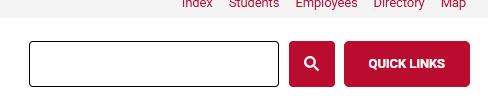
- Navigate to azwestern.edu
- Click on Quick Links in the top right corner
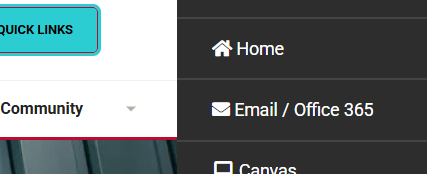
- Click on Email / Office 365 in the menu that opens on the side
- Sign in with your AWC email address.
- Students: first.last@stu.azwestern.edu or netID@toro.azwestern.edu
- Employees: first.last@azwestern.edu
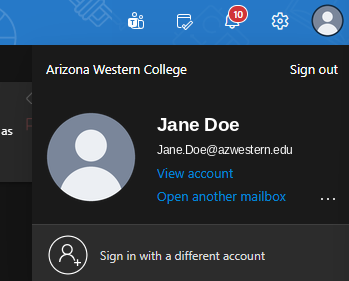
- In the top right corner, click on your profile icon and click on View account
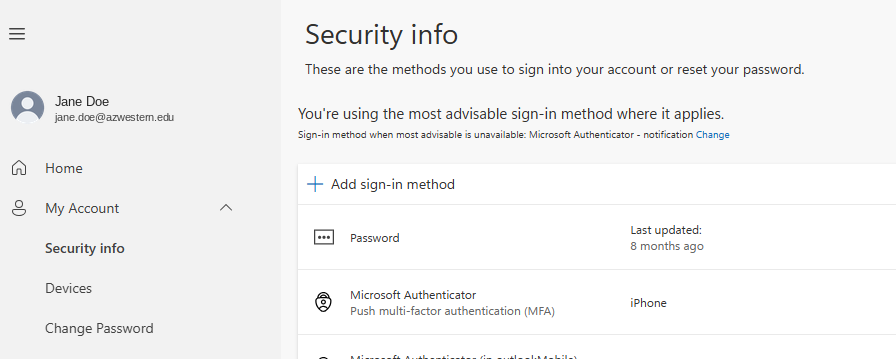
- In the left-hand menu, under My Account, select Security info. From here you can review all your sign-in methods and add or remove them.
How to Add Your YubiKey:
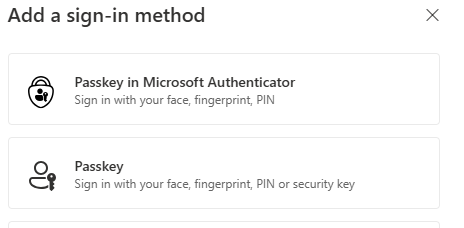
- Select Add sign-in method, then at the next prompt select Passkey
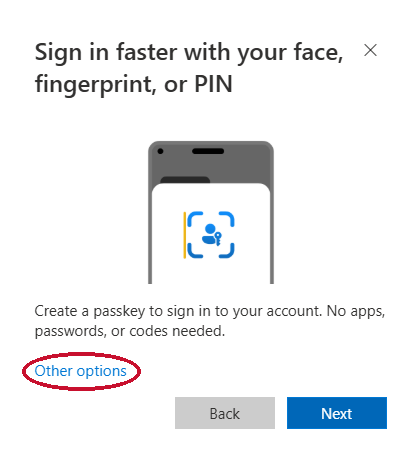
- At the next prompt, select Other options and click Next
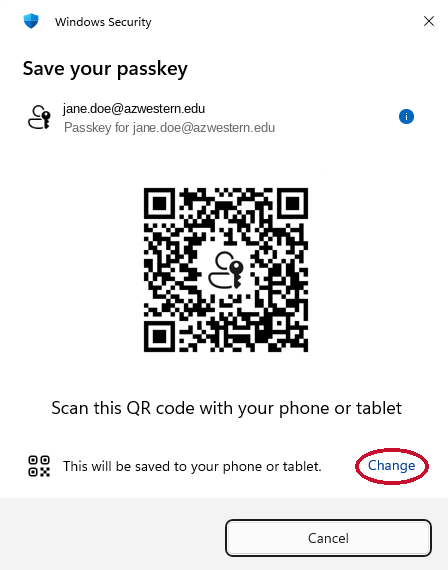
- At the Save your passkey prompt, click Change
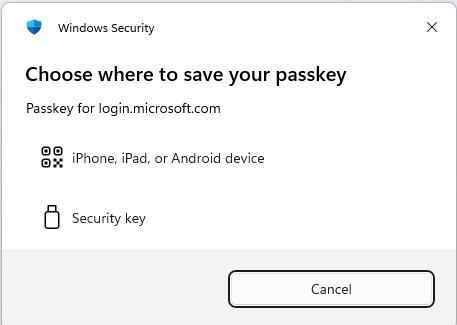
- When asked where to save your passkey, select Security key
- Enter a PIN of your choosing and select OK. It can be 4 to 6 digits and should be something you can remember, since you will be prompted for this PIN when signing in.
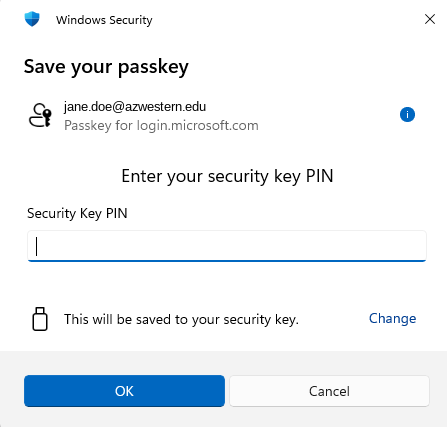
- After you enter your PIN, you'll be prompted to touch your key. Typically, the key will flash or blink to indicate this.
- Give your passkey a name and select Next
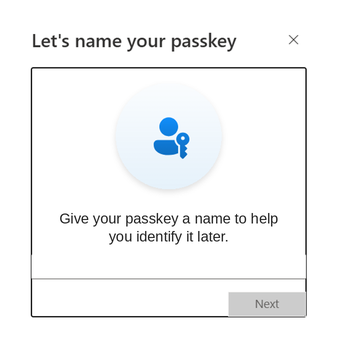
- You're all set! You can now use your YubiKey to sign in.
Questions?
Contact the Technology Service Desk at servicedesk@azwestern.edu or (928) 317-5892.